

Why Your YouTube Ad Blocker Keeps Breaking and How to Fix It
What changed on YouTube's side in late 2023, why filter lists now need manual updates, the exact repair sequence when playback stalls, why nothing works inside the mobile app, and what the paid route costs after the 2026 increases.
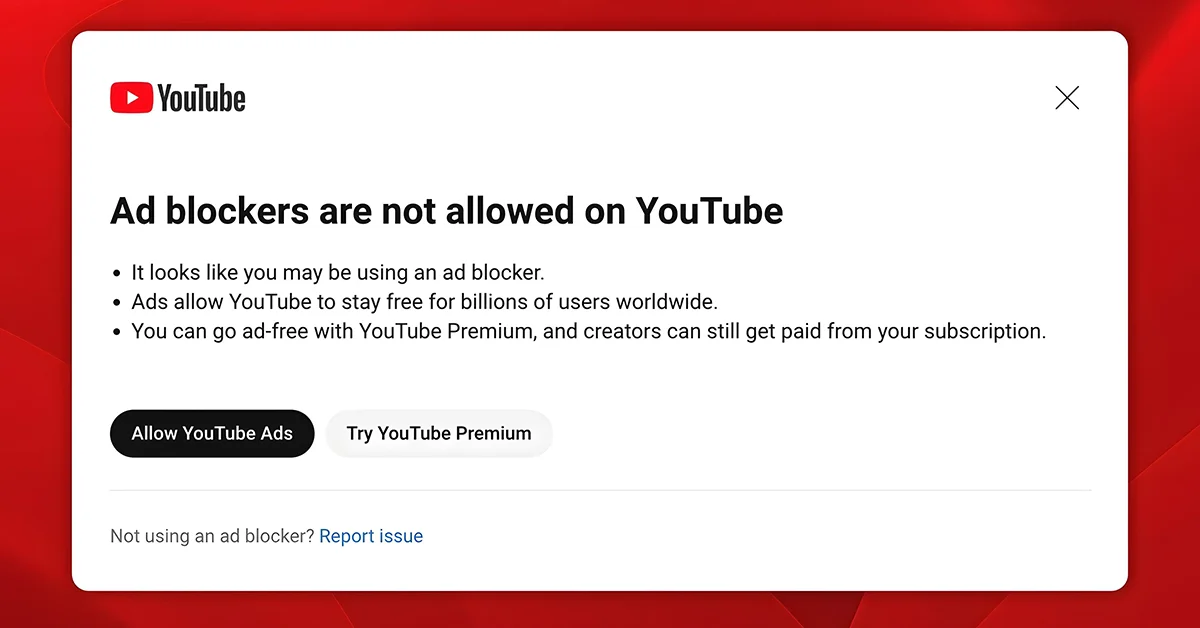
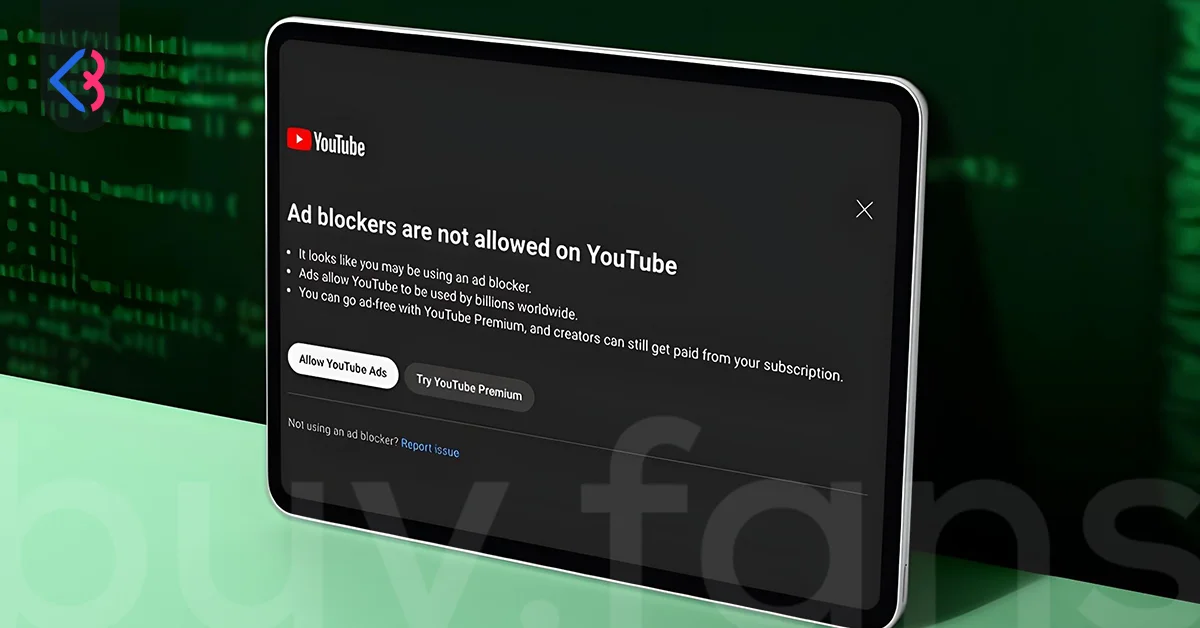
An ad blocker that worked perfectly for months suddenly triggers playback warnings, stalls video loading, or gets replaced by a prompt asking you to disable it. Nothing changed on your machine; YouTube's anti-adblock detection changed on theirs. Understanding that arms race is the difference between fixing the problem in two minutes and reinstalling extensions at random. What follows covers why blockers break, the repair sequence that restores them, why mobile is a separate problem entirely, what Premium now costs, and what creators need to know about ads on their own uploads.
Why Did Your Ad Blocker Suddenly Stop Working?
YouTube launched a global crackdown on ad blockers in late 2023 and escalated enforcement steadily through 2024 and 2025. The platform began detecting blocked ad requests and responding with playback warnings, deliberately slowed loading, or refusal to play video until the blocker was disabled.
The mechanism behind the breakage is a detection script that YouTube updates on its own schedule. Blocker maintainers respond by pushing a new filter rule, YouTube adjusts the script again, and the cycle repeats. Because your extension only receives that fix when its filter lists refresh, there is always a window where the blocker is technically installed and enabled but no longer effective.
That explains the pattern most users notice: everything works fine for weeks, then breaks overnight without any action on their part. The fix is almost never reinstalling the extension. It is forcing the filter lists to update, which is a completely different operation from updating the extension itself.
What Is the Correct Repair Sequence?
Working through these steps in order solves the overwhelming majority of cases, and skipping ahead usually wastes time. Start by confirming your extension is on its latest version, then work through the list below.
- Remove any custom filters or extra lists you enabled previously, since stale custom rules frequently conflict with current fixes.
- Open the extension settings, go to the filter lists section, and manually force an update of the quick fixes list.
- Disable every other active blocker and extension, leaving only your primary blocker enabled.
- Close the entire browser rather than just the tab, then reopen YouTube.
- Repeat the filter list update whenever the problem returns after a future YouTube change.
Step three catches people out more than any other. Opera, Vivaldi, and Brave ship with their own built-in blockers, so running a separate extension on top of them creates conflicts that look identical to detection failures. Turning off the built-in blocker or the extension, rather than running both, produces a far more stable result.
Step four matters more than it sounds. Closing only the tab leaves the old page context alive in memory, so the refreshed filters never take effect. A full browser restart is what actually loads the new rules.
Why Does Nothing Work Inside the Mobile App?
The mobile YouTube app is a fundamentally different situation, and this is where most guides quietly mislead people. Browser extensions cannot run inside a native app, so uBlock Origin and similar tools have no mechanism to work there at all. No amount of filter updating changes that.
The partial workaround is to stop using the app. Installing a privacy-focused browser with a built-in blocker, such as Brave, and opening YouTube through that browser instead of the app restores ad-free playback on a phone. Brave is available on both the Play Store and the App Store, along with desktop versions for Windows, Mac, and Linux.
That workaround carries real trade-offs. Watching through a mobile browser means giving up background playback, offline downloads, and app notifications, which are exactly the conveniences most people rely on. For anyone whose viewing is primarily on a phone through the app, the honest answer is that a paid subscription is the only reliable route.
What Does the Paid Route Actually Cost Now?
YouTube Premium removes ads across every device where you are signed into the same Google account, covering Windows, Mac, iPhone, Android, and consoles without any setup. Because it works at the account level rather than the browser level, it is immune to the detection cycle that breaks extensions.
Pricing rose sharply during 2026. As of June 2026, the individual plan costs $15.99 per month in the US, the Family plan runs $26.99, and the more limited Premium Lite tier sits at $8.99. Regional pricing differs considerably, so checking YouTube's own subscription page for local rates is worth doing before assuming the US figure applies.
Signing up is straightforward: open the Premium subscription page, sign in to your Google account, choose the free trial if you are still eligible, enter a payment method, and confirm. If you have already used a free trial previously, billing begins immediately rather than after a trial month. A card already saved to your Google account only requires the security code.
The VPN route deserves a brief mention because it circulates widely. Some paid VPN services bundle ad blocking, and connecting through regions where YouTube serves no ads can sidestep them. In practice, a quality paid VPN often costs about the same per month as Premium, works inconsistently across regions, and can be detected and closed off over time. As a dedicated solution to ads alone, the math rarely favors it.
Is Blocking Ads Actually Against the Rules?
This deserves a direct answer rather than the silence most guides offer. Using an ad blocker can conflict with YouTube's terms of service, and the platform's anti-adblock enforcement is built explicitly on that basis. Nothing about the practice is legally dangerous for an individual viewer, but it is not a neutral technical choice either.
The more concrete issue is creator revenue. Ads fund a substantial share of what channels earn, so blocking them reduces income for the exact creators you watch most often. A viewer who blocks ads across hundreds of hours of content is removing real revenue from the channels they value.
Premium is the only route that removes ads while still paying creators, since a portion of subscription revenue is distributed based on what subscribers watch. For anyone weighing cost against principle, that distinction is the one that actually separates the two options; the rest is a question of how much filter maintenance you are willing to do.



How Do Creators Turn Off Ads on Their Own Videos?
Everything above concerns viewers. For channel owners the equation inverts completely: ads are income rather than an annoyance. Still, there are legitimate reasons to disable them on a specific upload, such as a promotional video or a community-focused piece.
The process runs through YouTube Studio on a computer:
- Sign in to YouTube with your Google account on a desktop browser.
- Click your profile icon in the top-right corner.
- Select YouTube Studio from the dropdown menu.
- Open the Videos tab on the left side.
- Locate the video you want to change.
- Open the Monetization dropdown next to that video.
- Set it to Off and save.
Turning ads off demonetizes that video, so it will no longer generate revenue. If the Monetization option does not appear at all, the channel is not enrolled in the Partner Program yet, which means no ads are running on those videos in the first place.
That missing menu is where most new channels actually sit. Joining the Partner Program requires clearing subscriber and watch-hour thresholds, and reaching those numbers is the real obstacle rather than any setting inside Studio. For creators working toward that threshold, choosing to buy YouTube subscribers can serve as an early boost that supports organic growth rather than replacing it.
This article was last updated on 18 October 2026 sunday. Today, 38 visitors read this article.