
Should You Add Tagged Posts To Your Instagram Grid?
Add the tags you would have posted yourself. Leave the rest in the Tagged tab.
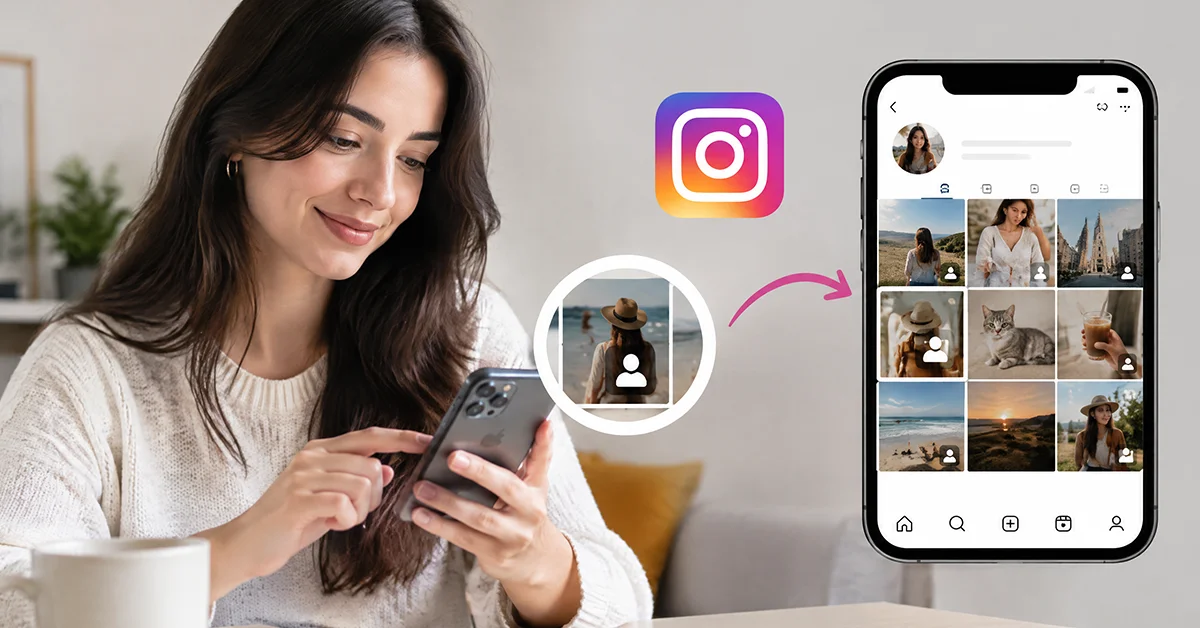
Yes, but only for the tagged posts you would have been proud to publish yourself. A client photo in your style, a partner brand's campaign shot with your face in it, a fan's sharp product photo from a public account, each of those earns a tile. A blurry event snap, an off-brand meme or a post from a private account does not.
The option itself is new. Instagram head Adam Mosseri's 10 September 2026 announcement introduced Add to grid, which places a post you were tagged in onto your own profile grid, and described it as starting to roll out that day. Instagram's help documentation adds that the feature may not be available in your region and lists only Android, iPhone and iPad, with no desktop version. If it has not reached your account yet, check again after an app update.
What follows is a decision guide rather than a walkthrough: what a visitor sees on the tile, how the option compares with a collab post and a repost, what the original poster is told, and where a private account breaks the plan.
Which Tags Earn A Place On Your Profile?
The tags that pass three checks at once: the post looks like yours, the image quality matches your own work, and the account that posted it is public. Miss one and the post stays in the Tagged tab, where it already lives without any action from you. The grid is the curated layer; the tab is the archive.
Brand fit comes first because a visitor reads every tile as your choice. A photographer's grid of warm portraits gains from a client's warm portrait and loses from that client's fluorescent office selfie. Image quality matters more here than on your own posts, since the cover image is set by the tag rather than by you. Most people skip the third filter, the public-account rule, a trap covered further down.
| Check | Add it when | Leave it in the Tagged tab when |
|---|---|---|
| Brand fit | The post could sit between your own posts without a visible seam | The subject, color or tone belongs to someone else's brand |
| Image quality | Sharp, well lit and framed like your own work | Dark, blurry, badly cropped or screenshot quality |
| Account type | The original poster has a public account | The original poster has a private account |
| Your role | You or your work is the clear subject | You are one face in a crowd or a passing mention |
| Timing | The post matches what you sell or make now | The post promotes an old offer or an ended partnership |
Run the checks in that order: brand fit is a glance, quality is a tap to open the original, and the account check means visiting the poster's profile. Most tags fail at the first check, which keeps grid curation from becoming a chore.
What Do Followers Actually See On Your Grid?
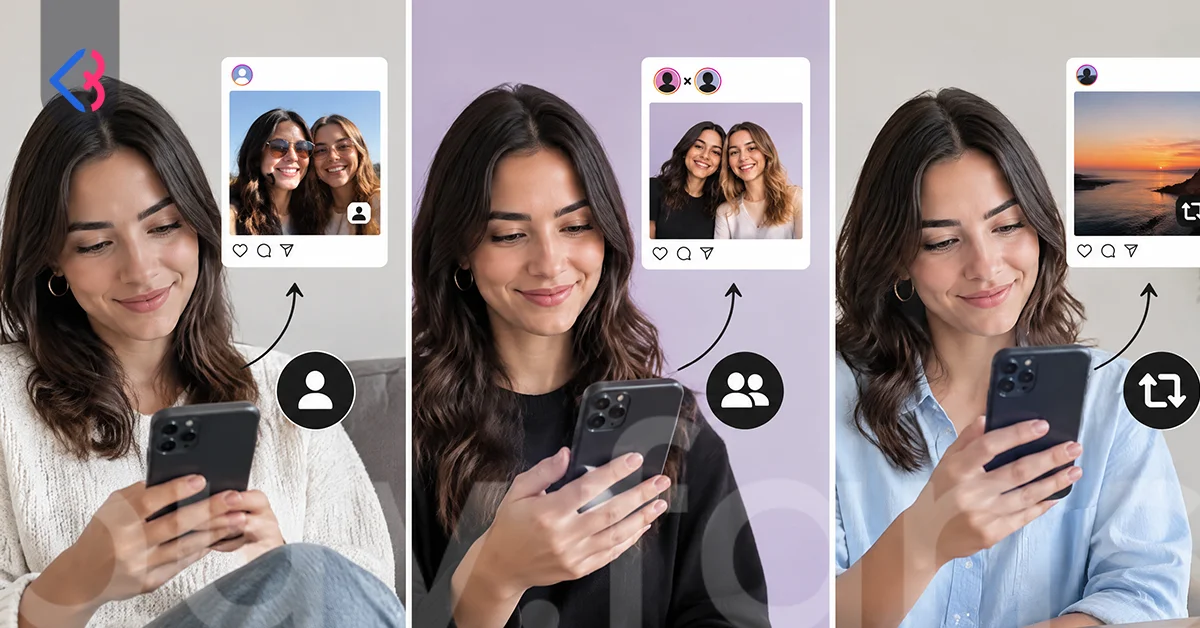
They see a tile with a small tag icon on the right, a cover taken from the first image you were tagged in, and nothing at all in their feed. Instagram's help documentation spells out both halves: the tile carries the tag icon and the first tagged image as its cover, and the tagged post is not shared with your followers. Tapping the tile opens the original on the poster's account, since nothing is copied to yours, photo or video alike.
Two claims widely repeated in coverage of the launch fall apart at that point. One said tagged photos could be moved to your feed or home page; the other implied you become an owner of the post. Neither appears in the official text.
So the audience for the tile is the profile visitor: the brand manager vetting you before a deal, the customer who followed the link in your bio. For them the tile works as social proof, a client or partner vouching for you in their own voice. That is a credential added to the grid, not an audience added to the post. Accounts that want their own video posts to hold their ground next to a client's polished tile sometimes buy Instagram post views for that original content, because feed distribution for the tagged tile itself does not exist.
There is also no official word on likes, comments or insights for the added post. Instagram's collab posts help page says collaborators can see all likes and comments on a shared post, while the tagged-post text says nothing of the kind, so treat the post as the poster's property.
Tagged Post Versus Collab Post Versus Repost
Three tools put someone else's post near your name, and each answers a different question. A collab post answers whether the post can reach your followers as a shared piece. With a repost, the question is whether your followers can see it with the creator credited. Add to grid settles a narrower matter, whether the post can sit on your profile as a portfolio piece.
| Tool | Reach | Ownership | Approval | Deletion |
|---|---|---|---|---|
| Tagged post added to your grid (Add to grid) | A tile on your profile grid only; not shared to followers' feeds | The original poster is the only owner; you are not shown as one | None; you add it and the poster is notified | Remove from main grid takes the tile off; the original and the Tagged tab entry stay |
| Collab post | Followers of every account on the post | Every account is a co-author, up to 5 contributors | You must accept the invite | Only the original creator can delete the post |
| Repost | Your followers, with the original creator credited | The original creator keeps ownership and credit | No invite step | You remove your repost; the original is unaffected |
Instagram's collab posts help page is the source for the middle row: shared with the followers of every account on it, each account shown as a co-author, an invite that has to be accepted, at most 5 contributors, and deletion reserved for the original creator. Set that against the tagged tile, which reaches nobody's feed, and the trade is plain. A collab buys reach and shared credit at the price of needing the poster's invite; Add to grid costs nobody anything and delivers nothing beyond the tile.
A repost sits between the two: it reaches your followers and keeps the creator's name on the post, but it does not make you an author or place a tile among your own work on the main grid. Reach and credit are separate levers, and only the collab post pulls both.
Does The Original Poster Know You Added Their Post?
Yes. Instagram's help documentation states that the post owner receives a notification saying you moved their post to your main grid, so a quiet addition does not exist. The notice arrives after the fact rather than as a request, which makes the button one-sided in mechanics and two-sided in manners.
That line is missing from most launch coverage. Read the notification as a design signal instead: Instagram chose to tell the poster, which suggests the tile is meant to read as their post on your profile, not your post borrowed from them. The poster also holds the off switch, according to the same page: remove the tag and the tile drops out of both your grid and your Tagged tab automatically.
Etiquette follows from those two facts, and a short message before adding turns a surprise notification into an agreed placement.
- Ask first when the post is a paid deliverable, because the client's usage terms may not cover a second profile.
- Reply to fans whose posts you add, so the notification reads as a thank you rather than a mystery.
- Skip posts where you are a background face; the tag was not an invitation to headline your portfolio.
- Take the tile down the same day if the poster asks, using Remove from main grid.
How Should Brands Handle Campaign Tags From Several Creators?
Choose one creator post for the grid, leave the rest in the Tagged tab, and use collab invites for anything that has to reach your followers. Adding every tag from a multi-creator launch gives your grid a run of near-identical product tiles that reach no feed. One strong tile beside your own launch post does the work of all of them: a visitor sees your announcement, then a creator vouching for it in their own style.
The case brands ask about most is the forgotten collab invite. A creator publishes the campaign post without inviting you as a collaborator, so it reaches neither your followers' feeds nor your profile. Until now the fixes were clumsy: a delete-and-republish with the invite, or a repost that lands outside your main grid. Add to grid solves half the problem, since the tile appears on your profile without the creator touching anything. Reach still belongs to the creator's account, so if the brief promised feed reach, a collab invite from the creator's side remains the only tool that delivers it.
A few working rules keep a brand campaign tidy. Add the single best tile and leave the others in the Tagged tab. A post from a private account is a skip, because most visitors cannot see it; ask that creator for the file instead. And since every creator you add receives the notification described above, put a line in the campaign brief saying the brand may feature their post on its profile.
Grid Order And Curation After The Tile Lands
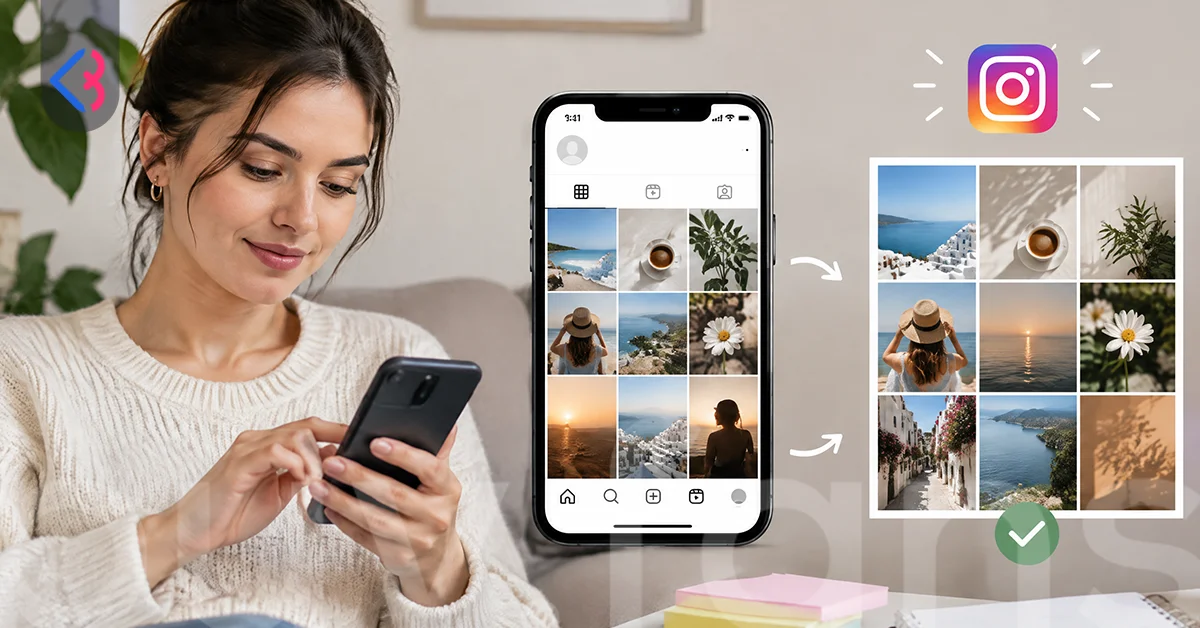
A new tile follows the grid's default order, which the official help page describes as reverse chronological unless you have reordered your grid. In practice the tile lands among your recent posts rather than in a separate row or at the top. It looks like one of yours apart from the tag icon, which is the whole point and also the whole risk.
If the default position is wrong, the tile can be moved. Meta's 8 June 2026 statement introduced Reorder grid, which lets you drag posts into a custom order while pinned posts and Reels stay fixed at the top, and an added tagged tile moves like any other post. Whether an added tile can itself be pinned is not covered in the documentation, so plan around reorder rather than pinning.
Curation then becomes routine. Review the grid at the end of each campaign cycle and take down tiles that no longer earn their slot with Remove from main grid, which per the same help page leaves the tile in the Tagged tab and the original post untouched. Instagram's tag settings help page notes that a tag lands on your profile automatically unless you switch on manual approval or the post is flagged as potential spam, so the Tagged tab fills on its own.
What Happens When A Private Account Tags You?
Only people who follow both you and that account can see the tile on your grid, so for most of your visitors the addition is invisible. Instagram's own help text gives the rule in two lines: when the original post is public, anyone who can see your profile can see it; when the original account is private, only people who follow both of you can see the post on your grid.
| Original poster's account | Your account | Who sees the tile on your grid |
|---|---|---|
| Public account | Public | Anyone who can view your profile |
| Public account | Private | Your approved followers, the only people who can view your profile |
| Private account | Public | Only people who follow both you and the poster |
| Private account | Private | Only people who follow both you and the poster |
You cannot see the gap yourself, and that is the trap. You follow the poster and the poster follows you, so the tile is right there on your own profile. A brand manager looking you up does not see it, and neither does a new follower the private account has not approved.
Do not ask a fan or a client to go public to fix it. Ask for the file instead and post it yourself with a credit in the caption, or leave the tag in your Tagged tab where the people the poster intended will find it. For a client whose photo you want in your portfolio, that request is a normal part of the delivery conversation.




When Does A Tagged Post Hurt Your Grid?
It hurts when the tile is off-brand, low quality or stale, and the damage runs deeper than one weak post because the cover is chosen by the tag rather than by you. The help article says the cover shows the first image you were tagged in, so a client who tags you on a later slide of a carousel hands you that slide as the tile, strongest frame or not. You can accept the tile or leave it in the Tagged tab; you cannot pick another cover.
Off-brand tiles are the most frequent problem: a meme page or a friend's party photo tags you, and the image that is fine on their grid is jarring on yours. Low-quality tiles come next, a dark venue shot or a phone screenshot beside your own edited work that makes the visitor wonder which one is the real you. Stale tiles are the slow problem: a partnership that ended or a product that changed, still sitting between this month's posts.
Together they give a decision table you can apply to any tag.
| Who tagged you | Add it to your grid? | Why | Better move if not |
|---|---|---|---|
| A client tags you in a finished project photo from a public account | Yes, when the photo matches your grid style | Social proof in the client's own voice, placed like a portfolio piece | Ask for the file and post it yourself if the cover is wrong |
| A fan tags you in a photo of your product from a public account | Only if the photo is sharp and on-brand | A good fan photo proves real people buy from you; a poor one reads as your standard | Thank them and leave it in the Tagged tab, or repost it for your followers |
| A partner brand tags you in a campaign post from a public account | Yes, plus a collab invite if you need feed reach | The tile gives you the association; only a collab post reaches your followers | Repost it if a collab invite is not possible |
| An event photographer tags you in a crowd or stage shot | Rarely | You are usually one face among many, and the cover is chosen by the tag | Leave it in the Tagged tab or share it to your Story |
| A private account tags you in any post | No | Only people who follow both of you can see the tile | Ask for the file and post it with credit |
The rule behind every row is the one from the first line of this guide: add the post if you would have published it yourself, and leave it in the Tagged tab if you would not. Use Add to grid sparingly, use Remove from main grid without hesitation, and let the collab invite do the work whenever the goal is reach rather than a tile.
This article was last updated on 25 October 2026 sunday. Today, 4 visitors read this article.